A Guide to Using the Apprenticeship Service
All employers are now required to set up an Apprenticeship Service account to recruit and manage apprentices. This guide will assist you in navigating the process.
If you need assistance with creating or utilising your Apprenticeship Service account, our Business Development Team is here to help. Reach them via email at enquiries-bdc@hughbaird.ac.uk or call 0151 353 4444.
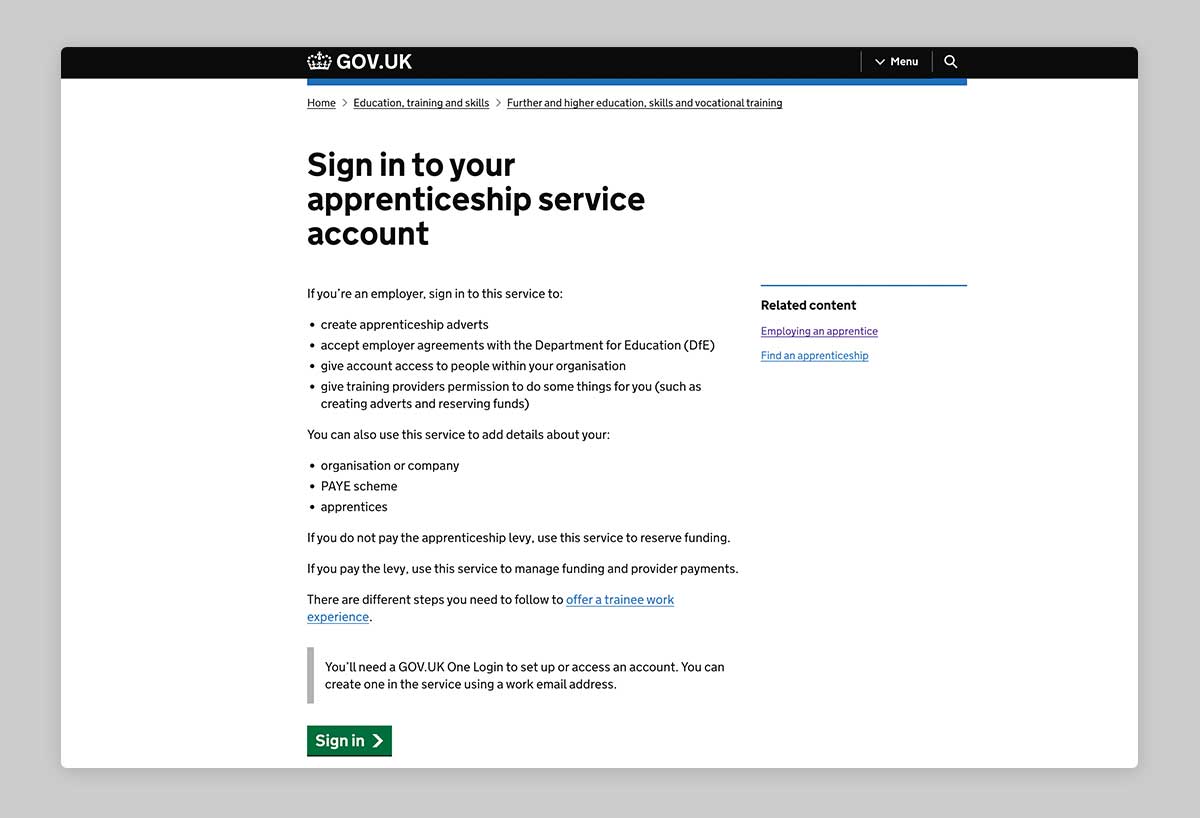
Step 1: Getting started
Before setting up your apprenticeship service account you’ll need:
- A GOV.UK One Login account linked to an email address you use for work - you can create this at the same time as creating your apprenticeship service account.
- The Government Gateway login for your organisation (or you can use the accounts office reference number and employer PAYE scheme reference number if your annual pay bill is less than £3 million).
- Authority to add PAYE schemes to the account.
- Authority to accept the employer agreement on behalf of your organisation.
You will be asked to:
- Create an account.
- Add a PAYE scheme on behalf of your organisation.
- Accept the employer agreement with the Department for Education (DfE).
Once you are ready to register, you can create an account to manage apprenticeships.
Step 2: Reserving apprenticeship funds
All non-levy payers need to reserve the funds which pay for the training and assessment of apprentices as soon as you decide to take on apprentice. If you plan to recruit a new apprentice, the funding should be reserved before you recruit.
-
From the homepage of your account, go to the Your funding reservations tab and click Reserve funding.
-
Add the course information for your apprentice then Save and Continue.
-
Select the month your apprentice will be starting then Save and Continue (the apprentice can start in the month you choose, or the following two months e.g. if you select September, they can start in September, October or November).
-
Select Yes, reserve funding now then Confirm.
-
Scroll down and select Add Apprentice Details.
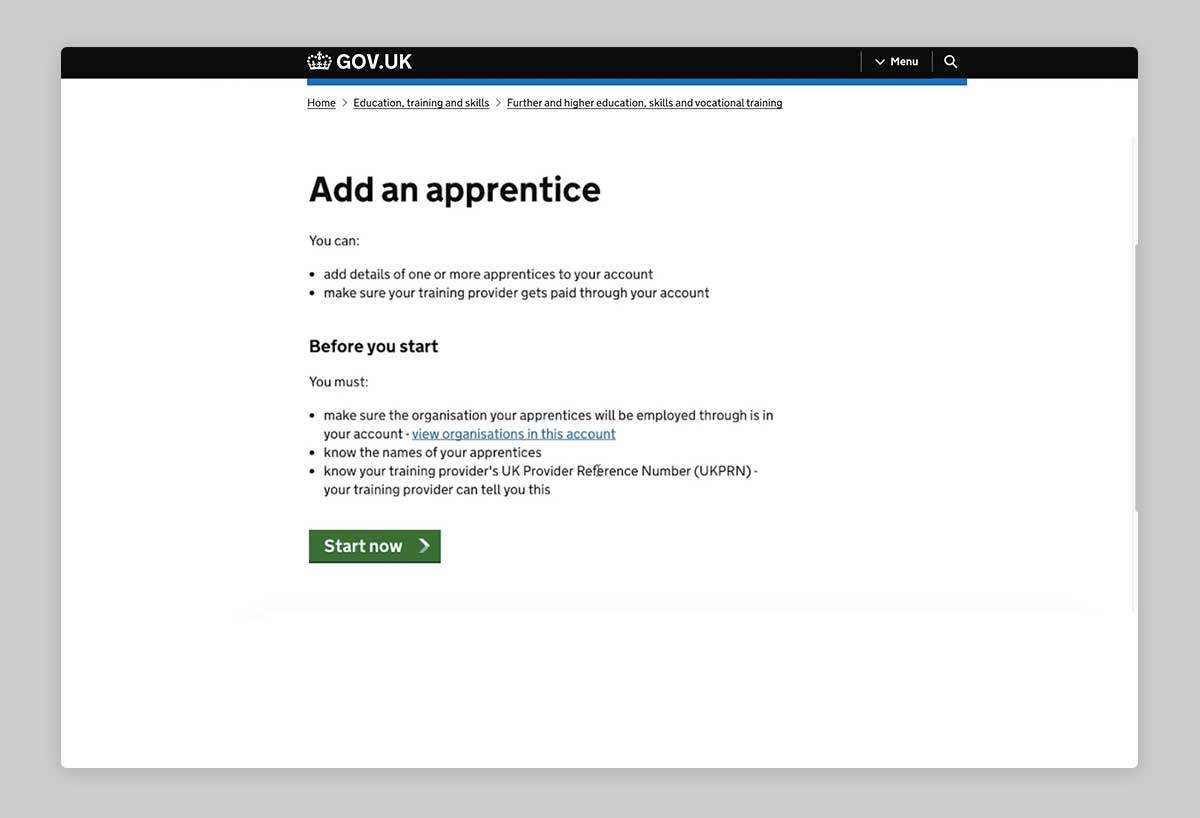
Step 3: Adding apprentices to your account
Each time you hire an apprentice, or an existing member of your staff signs up to doing an apprenticeship, you will need to add them to your Apprenticeship Service account.
-
From the home page of your account, go to the Apprenticeship tab and click on Add an Apprentice then Start Now.
-
Add Training Provider details - UK Provider Reference Number (UKPRN) 10003193 then Continue. Confirm training provider (select Yes).
-
Select I will add apprentices then continue.
-
Please enter the apprentice's name as a minimum, then enter as many of the other details as you can. Select Save and Continue.
-
If you have more than one apprentice to add, you may do this now by selecting Add another apprentice and following the same steps as above.
-
Once you have added all your apprentices' names, approve these details by selecting Yes, approve and notify training provider.
Your request will be approved by our team once the apprentice has been signed up via your training coordinator or assessor.
Step 4: Setting provider permissions
-
From the home page of your account, click on Your training providers.
-
Click on Add a training provider, enter our UKPRN number 10003193 and click Continue.
-
Select Yes, Add HUGH BAIRD COLLEGE and Continue.
It is important that you follow the remaining steps to set the permissions that will allow us to make changes to your account.
-
Click on Return to training providers (or from the home page of your account, click on Your training providers).
-
Then next to HUGH BAIRD COLLEGE click on Set Permissions.
-
Next, you will be asked ‘Do you give Hugh Baird College permission to add apprentice records?’ Select Yes and Continue.
-
Next, you will be asked ‘Do you give Hugh Baird Colleg permission to recruit apprentices?’ Select Yes and Continue.
-
Finally, you will be asked to confirm permissions for Hugh Baird College.
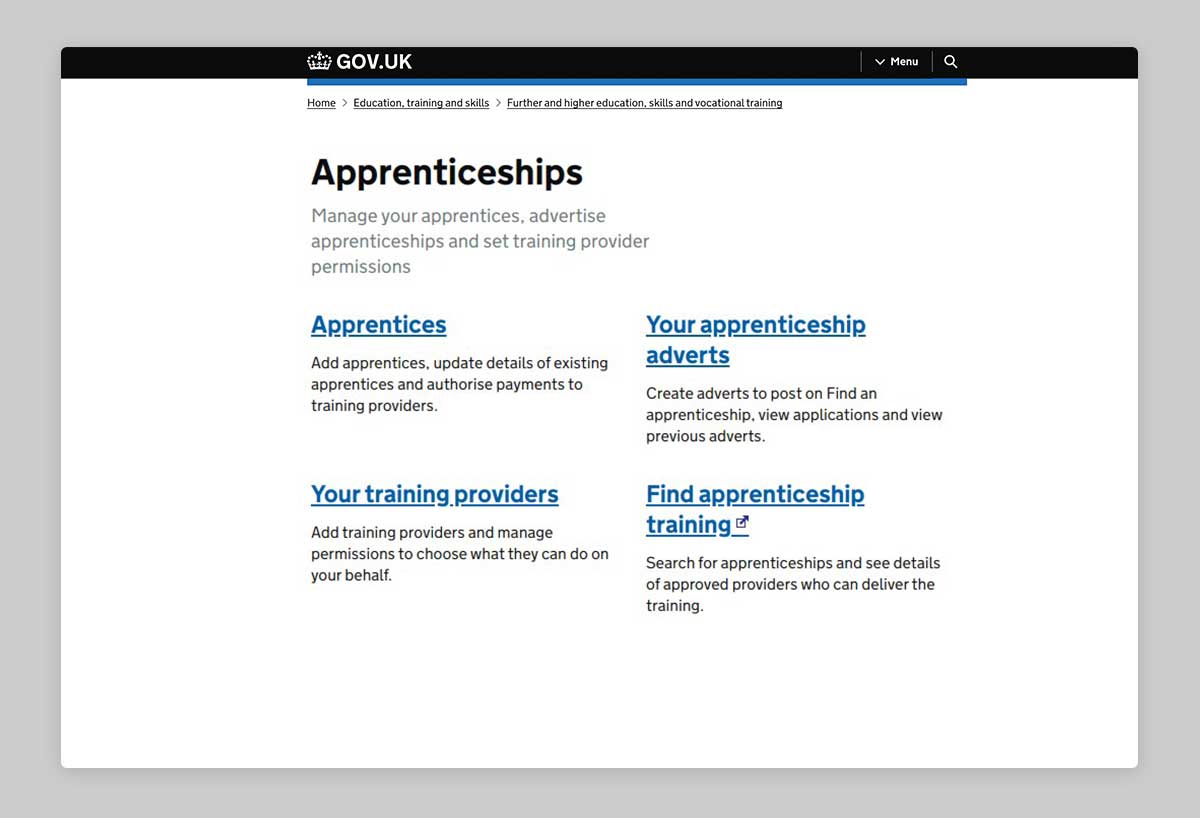
Step 5: Recruiting an apprentice with Hugh Baird College
Once you have reserved the apprenticeship funding (Step 2) and have given Hugh Baird College full permissions (Step 4), our Business Development Team will be happy to create an advert for your vacancy and manage the applicants on your behalf.
We will work with you to collect all the necessary information to place your advert. Some of the essential information includes:
- Apprentice role and responsibilities
- The training your apprentice will take and expected qualifications at the end
- Expected career progression after this apprenticeship
- Apprenticeship start date
- Application closing date
- Pay, duration and working hours
- Essential qualifications for the role
- Skills and personal qualities required
- Benefits and other useful information about your company that will help attract candidates
Once the advert has been submitted and successfully checked by the system, it will go live within 24 hours and will be searchable on Find an apprenticeship website.
Our Business Development Team will then support you with managing and shortlisting applicants.
Need help?